CloudDIET Permissions
This page describes the steps for configuring CloudDIET access to profile your Microsoft Azure environment. CloudDIET requires a minimum set of Azure built-in roles which allow the profiler to view resource configurations, usage metrics, and billing data in the Azure Resource Management plane.
The service principal is granted read-only permissions. It does not allow CloudDIET to make changes within the Azure Resource Management plane, or view and access customer data in the data plane.
Steps
- Create an Azure Service Principal: The Azure Service Principal allows the CloudDIET profiler to authenticate to Azure.
- Assign Azure Resource Manager / Subscription Permissions: Configure roles to authorize the CloudDIET Azure Service Principal to profile the Azure Subscriptions.
- Assign Billing Account Permissions: Configure roles to authorize the CloudDIET Azure Service Principal to profile billing data.
- Assign Reservations Permissions: Configure the Azure Service Principal and Subscriptions in CloudDIET.
- Assign Savings Plans Permissions: Configure the Azure Service Principal and Subscriptions in CloudDIET.
- Add Service Principal(s) in CloudDIET: Configure the Azure Service Principal and Subscriptions in CloudDIET.
Required Azure Roles
| Role | Description |
|---|---|
| Billing Account Reader | For MCA (Microsoft Customer Agreement) billing. Allows read access to billing data. |
| Billing Reader | Allows read access to billing data. |
| Log Analytics Reader | View monitoring and diagnostics data. |
| Reader | View all resources at the Azure Resource Management plane, but does not allow any changes, and does not allow access to the data plane. |
| Reservations Reader | Allows read access to Reservations. |
| Savings Plan Reader | Allows read access to Savings Plans. |
Configuration Steps
Step 1: Create an Azure Service Principal
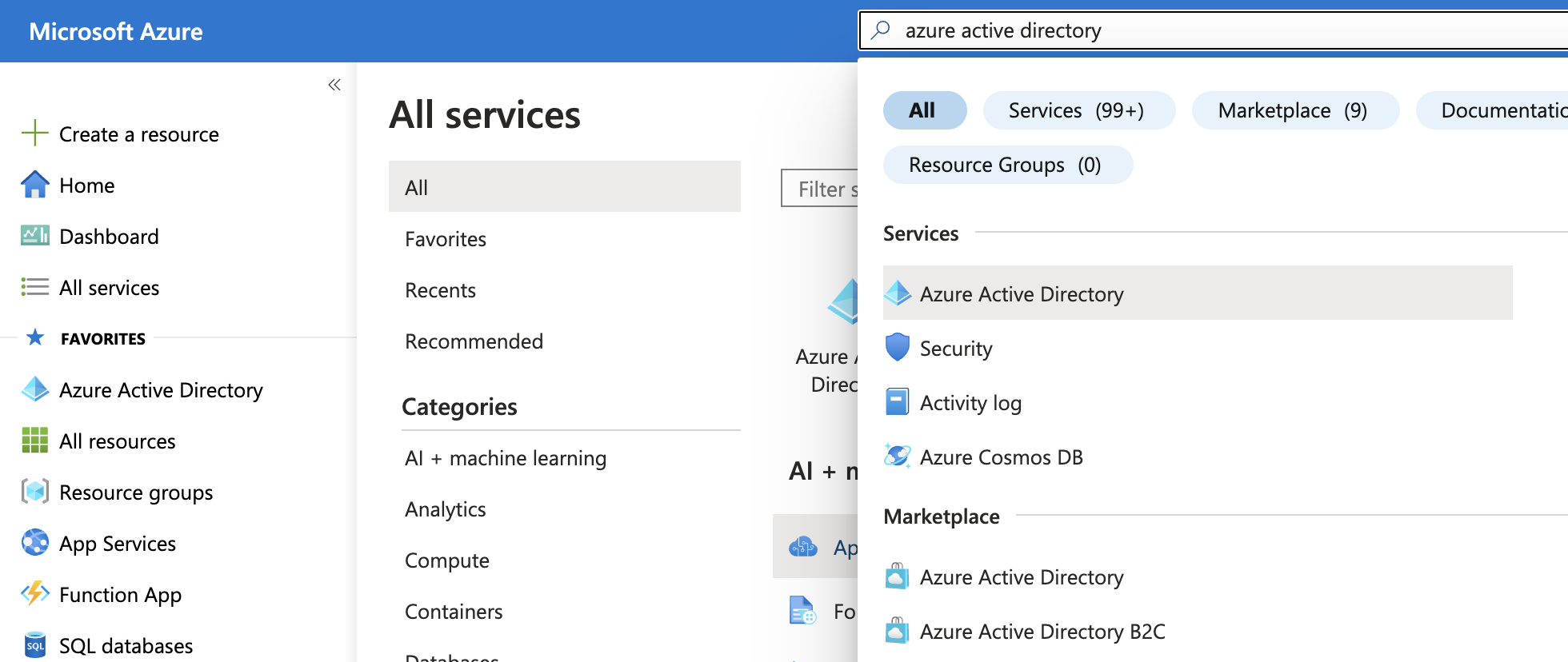
- Login to the Azure management portal and navigate to Azure Active Directory.
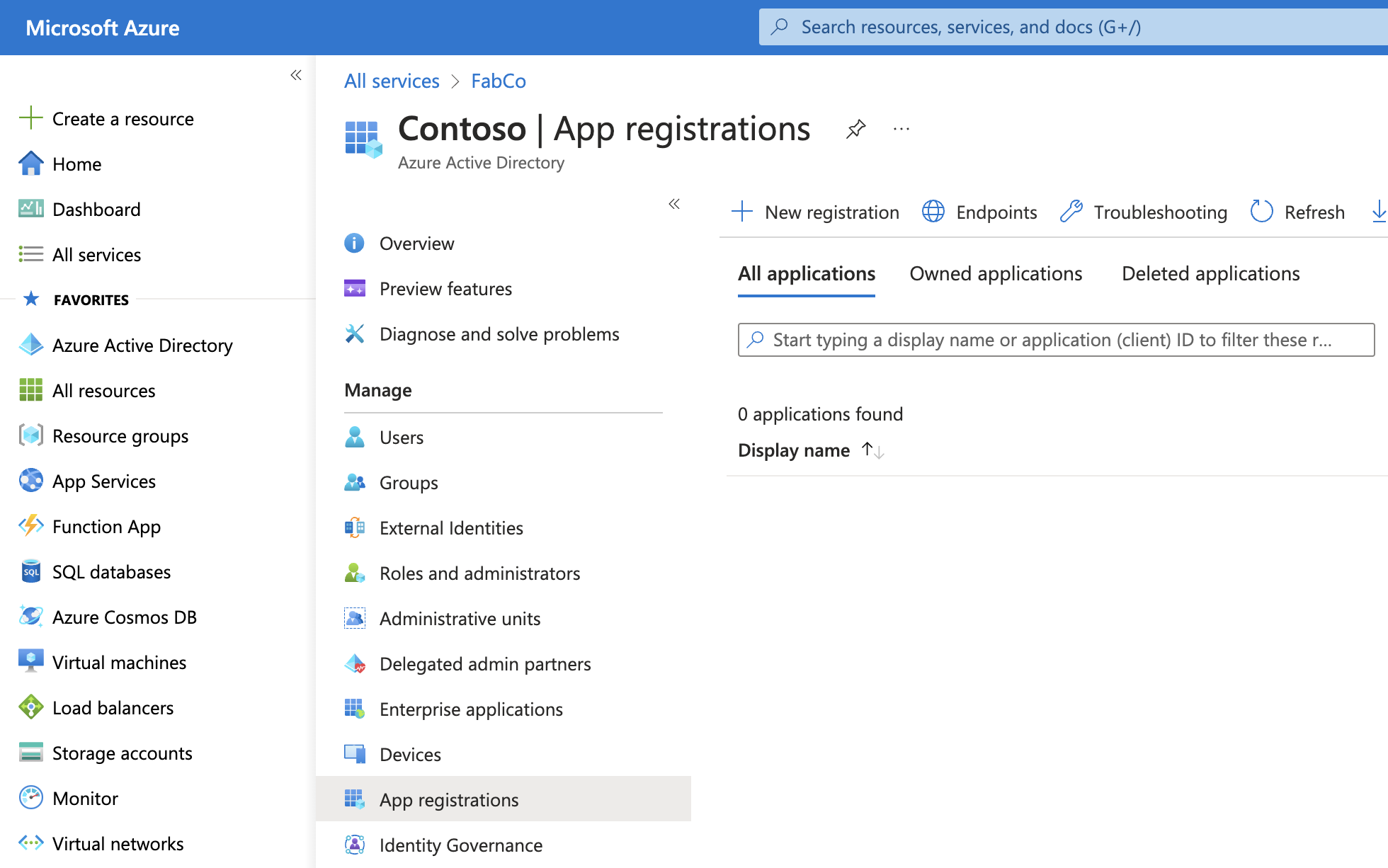
- Select App registrations from within the Azure Active Directory blade and then New registration.
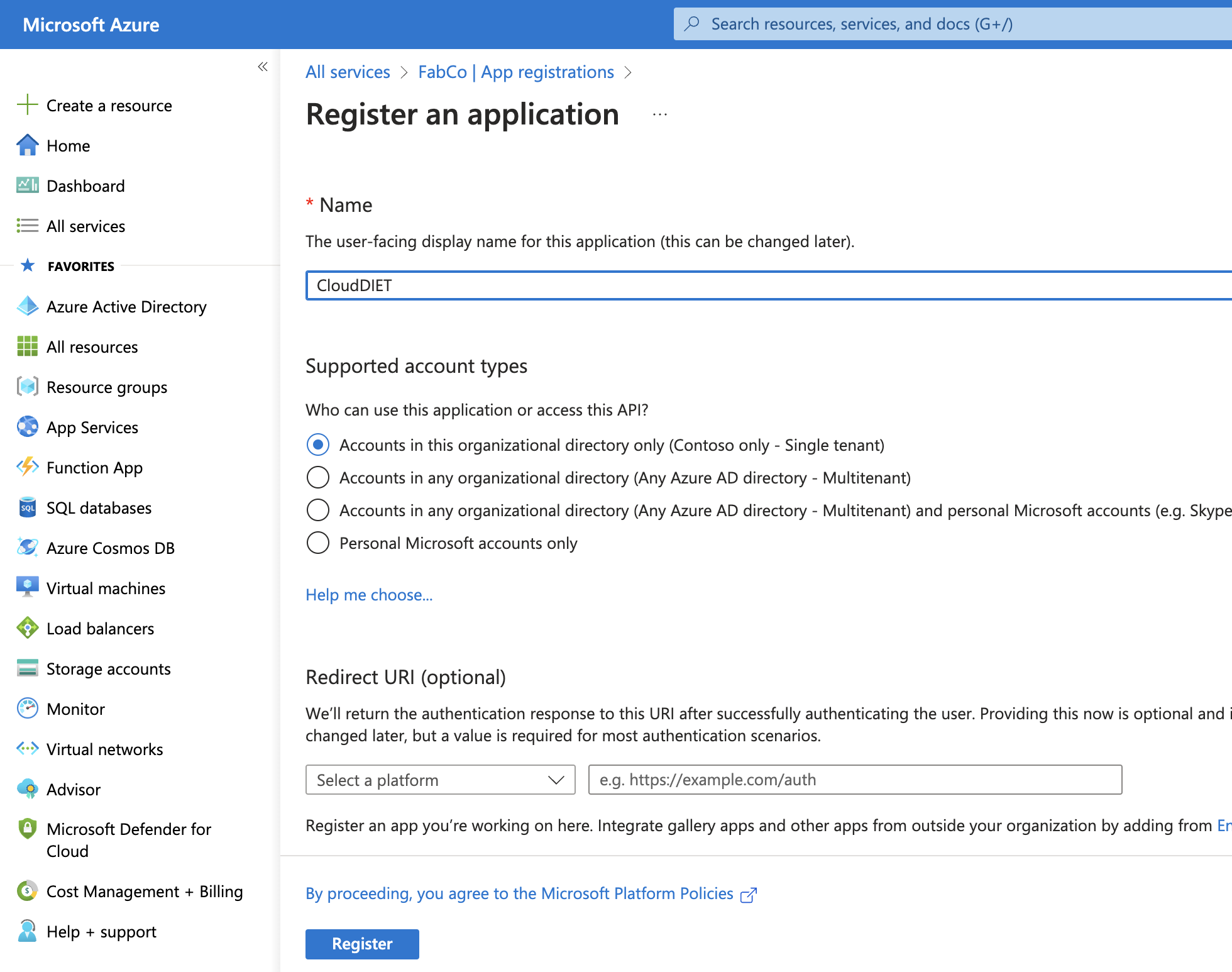
- Provide CloudDIET for the Name. Leave the other options default and click Register.
- Make note of the displayed GUID’s. Application (client) ID and Directory (tenant) ID will need to be configured in CloudDIET.
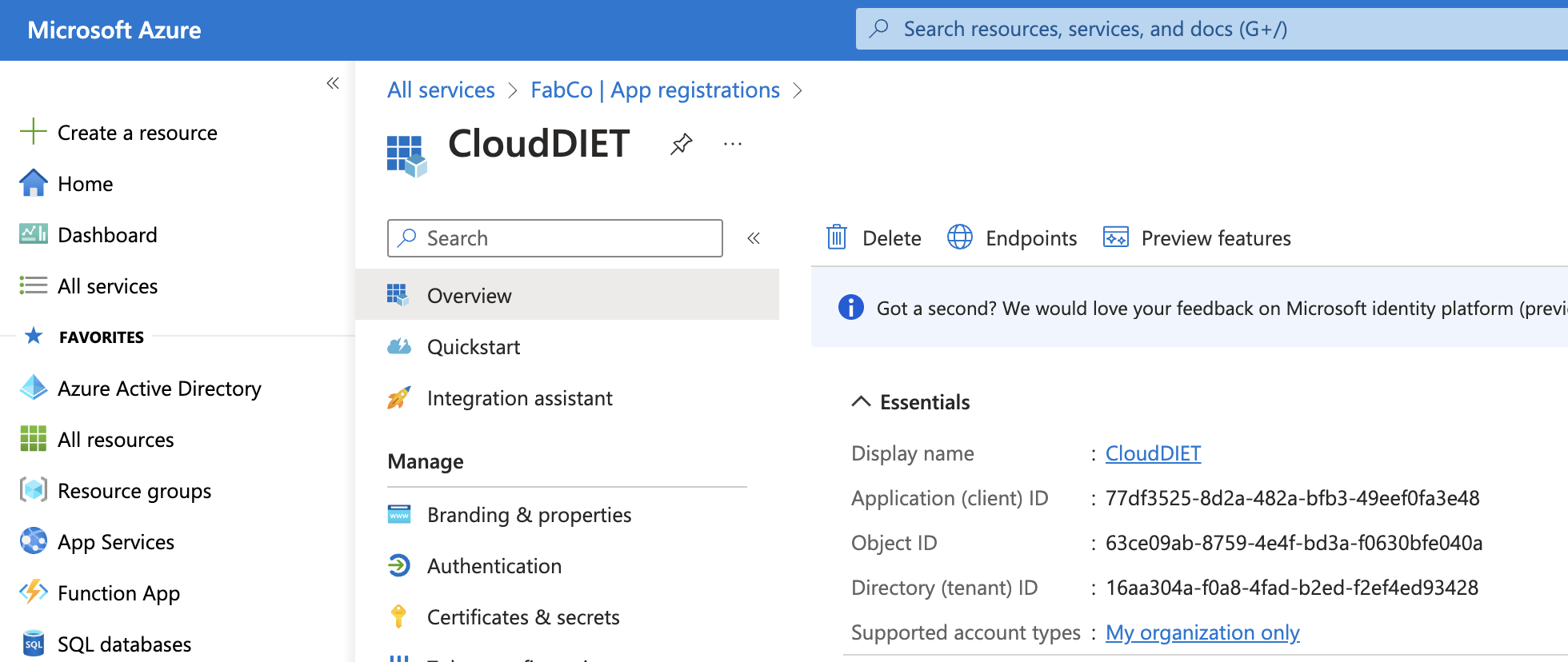
- Select Certificates & secrets from the menu.
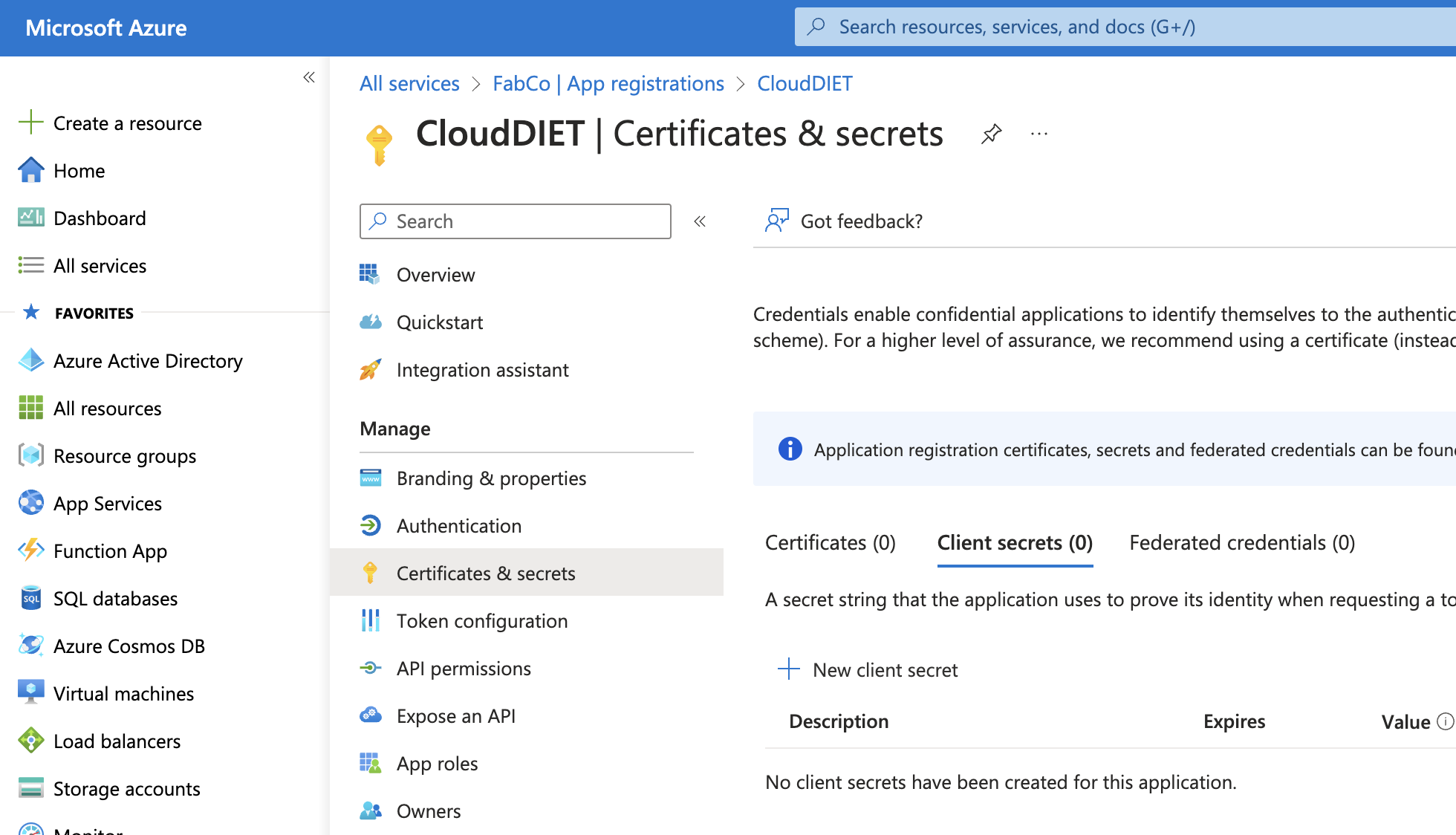
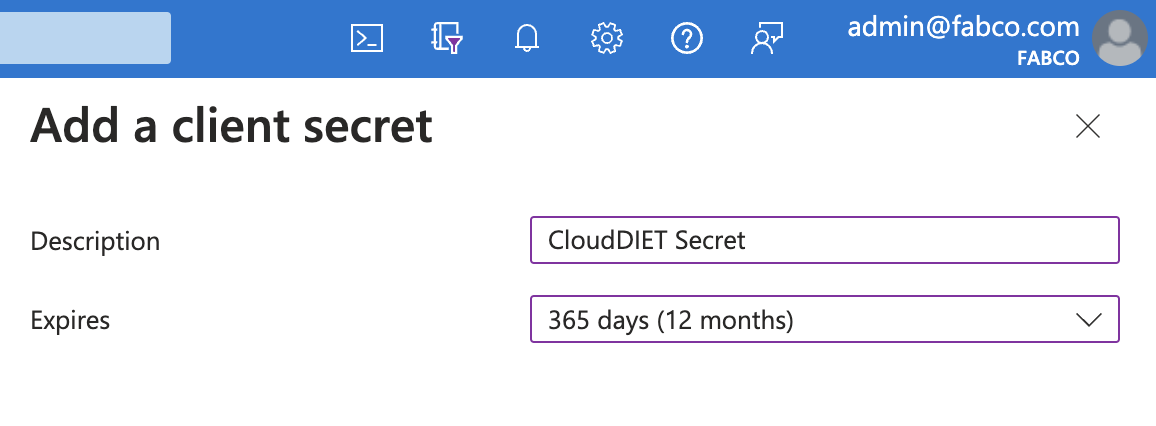
- Click the New client secret button. Provide a Description and set Expires to 365 days (12 months) or the length of your term.
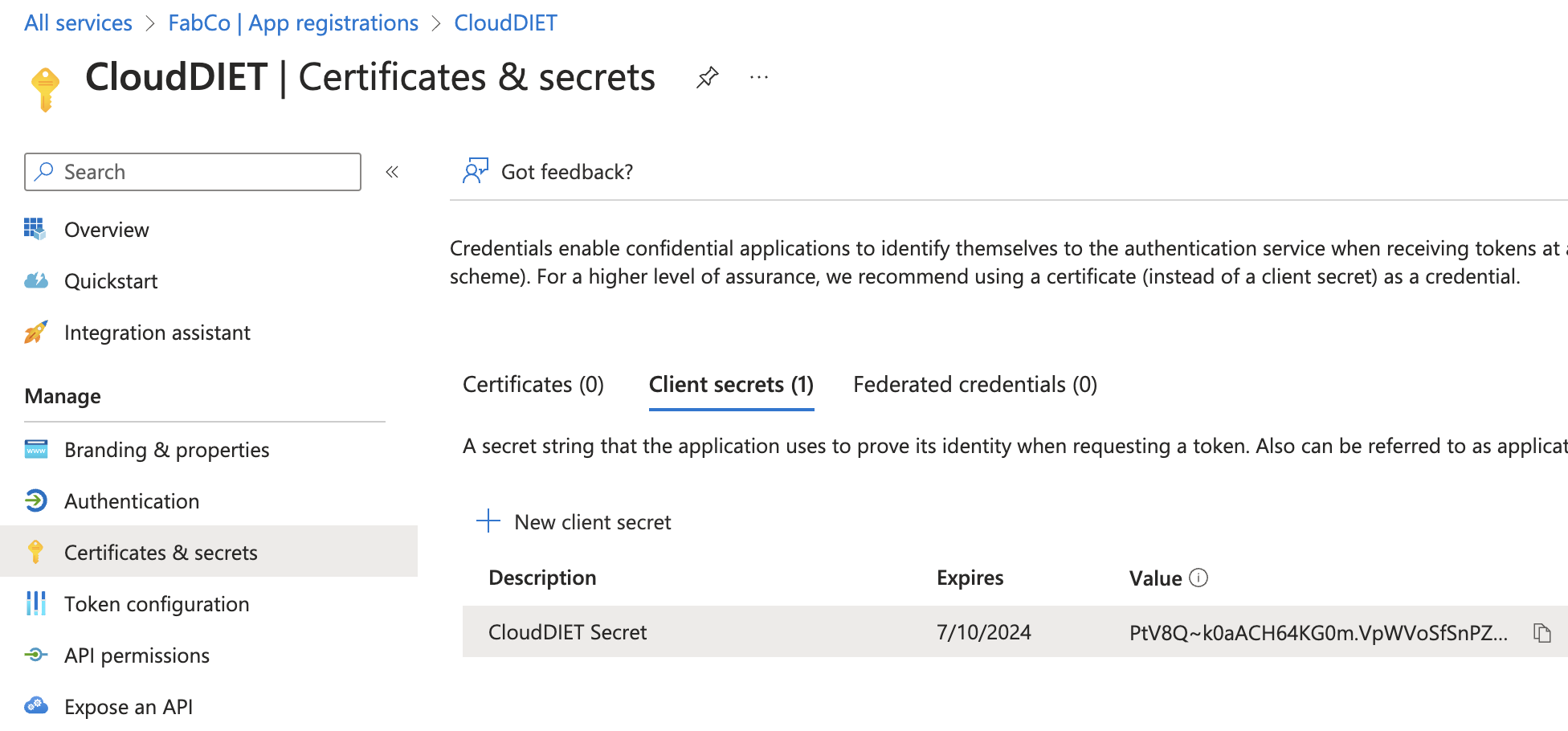
- Copy the secret Value from the list. The secret Value will need to be configured in CloudDIET. Once you navigate away from the page, the value will not be accessible again.
- Select Overview from the menu. On the right side of the overview details, select Managed application in local directory: CloudDIET
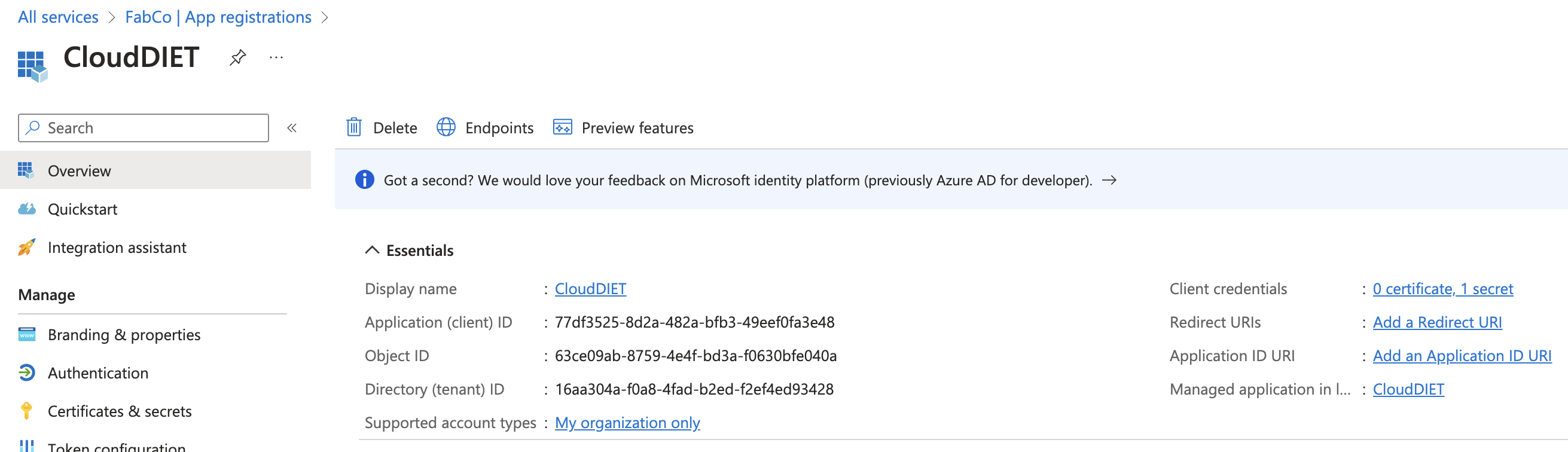
- Creating the app registration in the prior steps automatically creates an Enterprise Application. Copy the Object ID. The Object ID will need to be configured in CloudDIET.
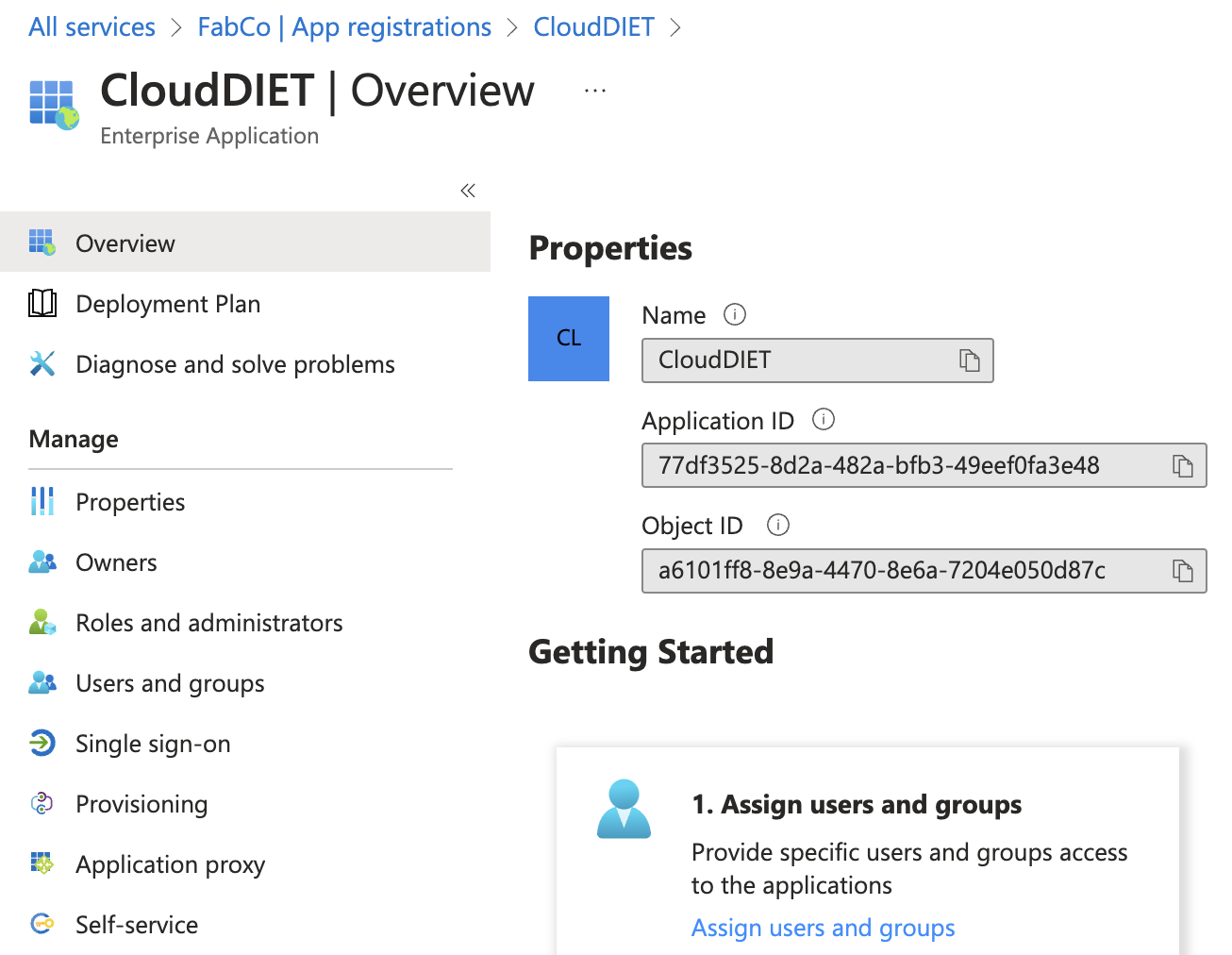
- The Azure Service Principal has now been created. The following details will need to be configured in CloudDIET.
| Value | Example Value |
|---|---|
| Application (client) ID | 77df3525-8d2a-482a-bfb3-49eef0fa3e48 |
| Directory (tenant) ID | 16aa304a-f0a8-4fad-b2ed-f2ef4ed93428 |
| Client secret | PtV8Q~k0aACH64KG0m.VpWVoSfSnPZ |
| Object ID | a6101ff8-8e9a-4470-8e6a-7204e050d87c |
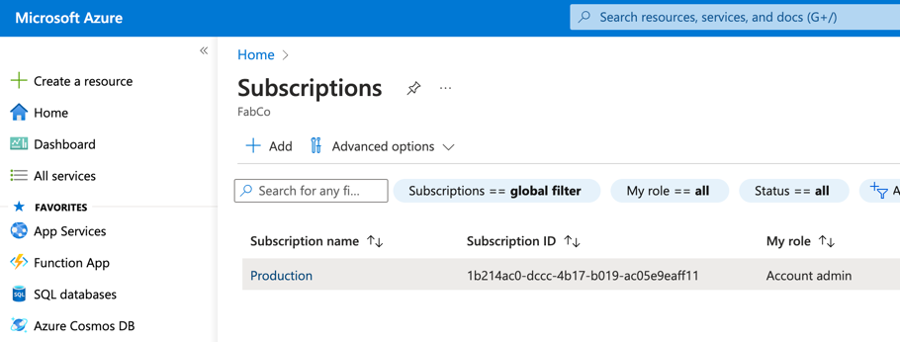
| Subscription ID | 1b214ac0-dccc-4b17-b019-ac05e9eaff11 |
Step 2: Assign Azure Resource Manager / Subscription Permissions
While the Service Principal has been created, it has no permissions by default. The following steps will assign the appropriate permissions to allow CloudDIET to profile your environment.
- From within the Azure management portal, search Subscriptions from the top search.
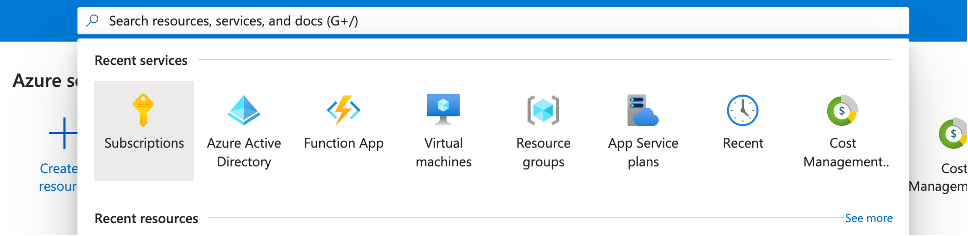
- From the list of Subscriptions, select one of the Subscriptions to start.
- From within the Subscription blade, select Access control (IAM) from the menu. Click the Add button and select Add role assignment from the dropdown.
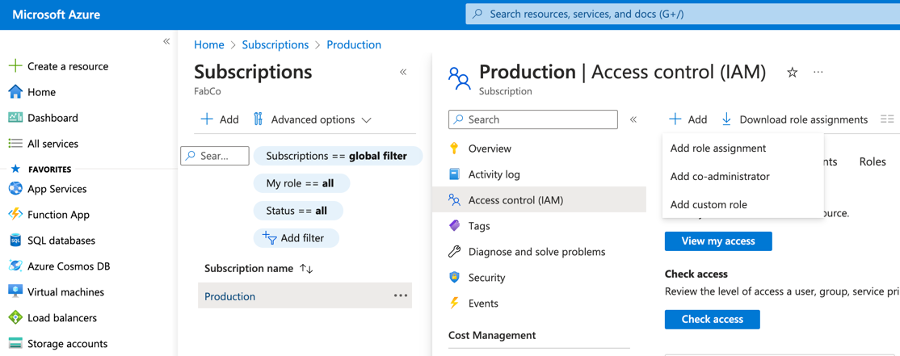
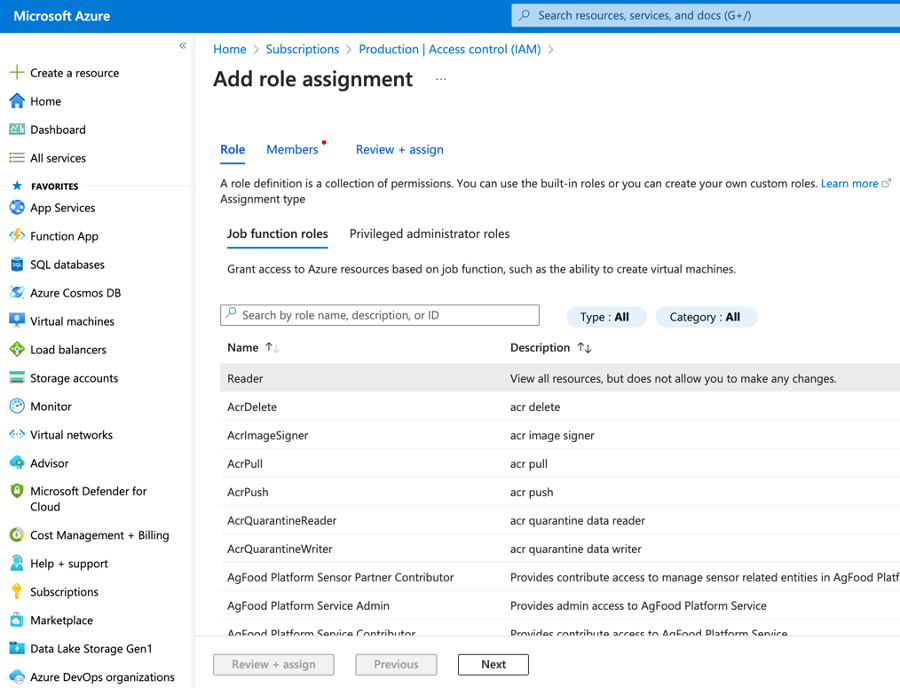
- From the Add role assignment blade, select the Reader role and click Next.
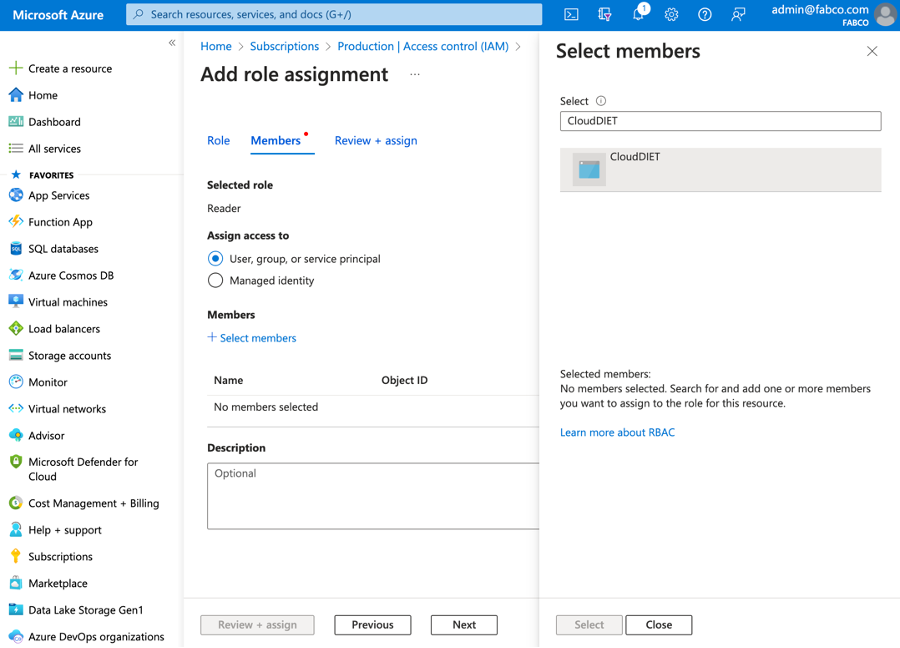
- In the Members section, click + Select members and search for the CloudDIET Service Principal we created in the previous steps. Select the Service Principal and click the Select button.
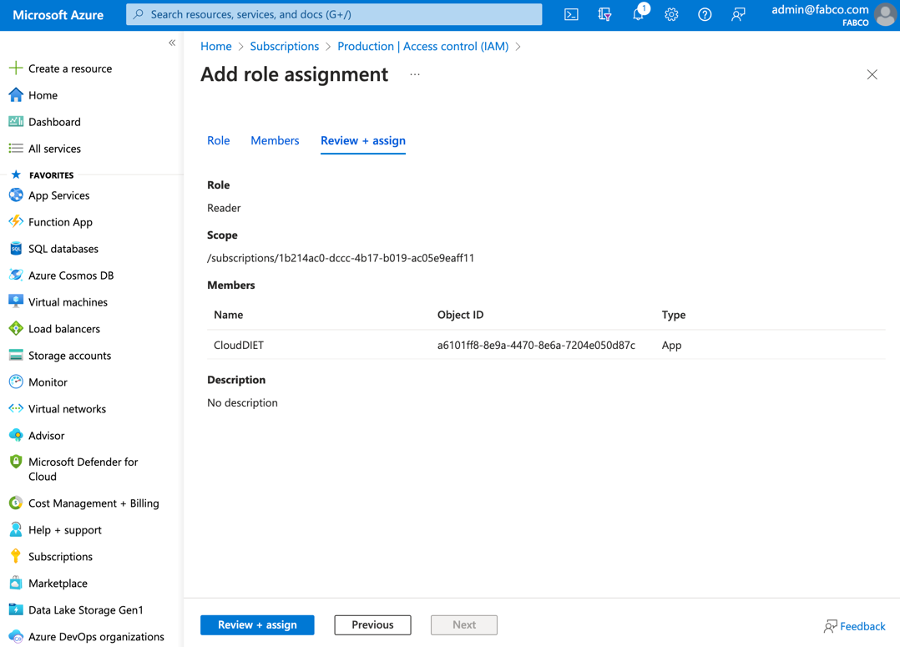
- Click Review + assign to assign the role to the Service Principal.
- Roles are assigned one at a time. The same steps must be performed for all roles.
| Role | Description |
|---|---|
| Billing Reader | Allows read access to billing data. |
| Log Analytics Reader | View monitoring and diagnostics data. |
| Reader | View all resources at the Azure Resource Management plane, but does not allow any changes, and does not allow access to the data plane. |
Step 3: Assign Billing Account Permissions
An additional role is required for MCA (Microsoft Customer Agreement) billing which allows read access to billing data.
| Role | Description |
|---|---|
| Billing Account Reader | For MCA (Microsoft Customer Agreement) Billing Scopes billing. Allows read access to billing data. |
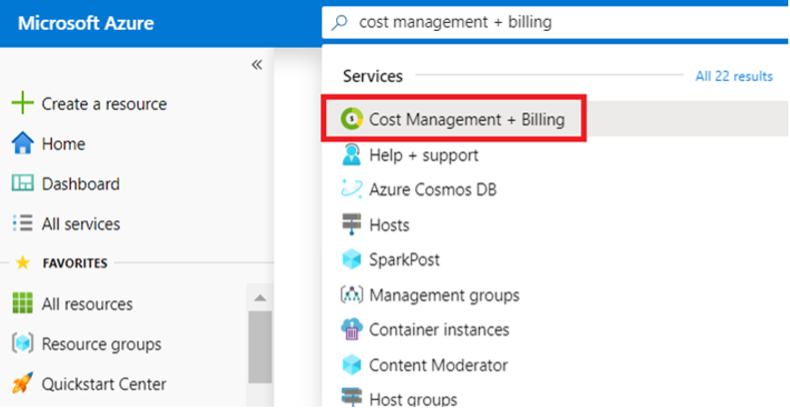
- From within the Azure management portal, search Cost Management + Billing from the top search.
-
Select a Billing scope to start, and then select Access control (IAM).
-
Within Access control (IAM), click Add.
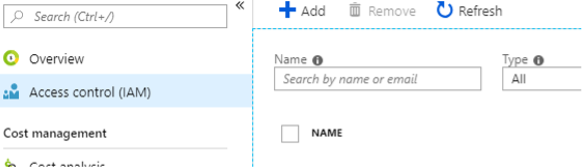
- Set the Role to Billing account reader and search for the CloudDIET Service Principal created in the previous steps. Click Save to assign the role.
Step 4: Assign Reservations Permissions
This step allows CloudDIET Reader access to Reservation usage.
| Role | Description |
|---|---|
| Reservations Reader | Allows read access to Reservations. |
- From within the Azure management portal, search Reservations from the top search.
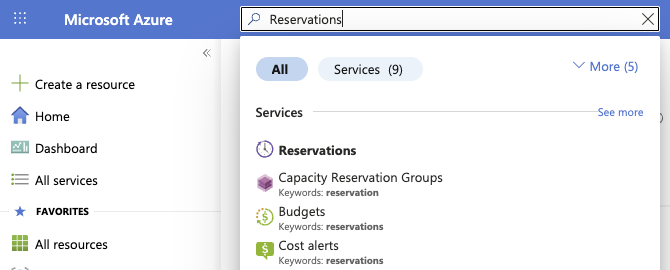
- Within Reservations, click the Role Assignment button.
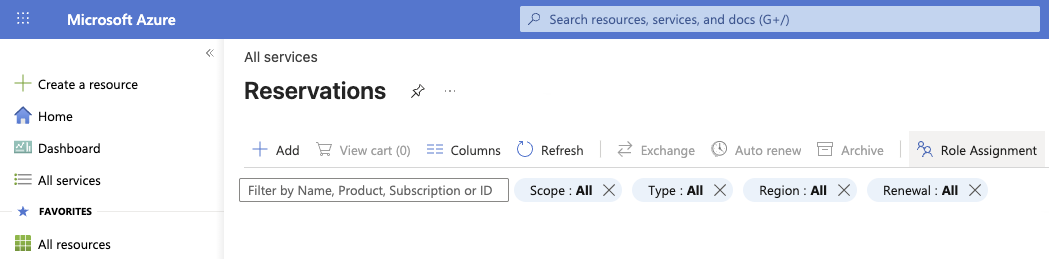
- Set the Role to Reservations Reader and search for the CloudDIET Service Principal created in the previous steps. Click Review + assign to assign the role.
Step 5: Assign Savings Plans Permissions
This step allows CloudDIET Reader access to Savings Plan usage.
| Role | Description |
|---|---|
| Savings plan Reader | Allows read access to Savings Plans. |
- From within the Azure management portal, search Savings plans from the top search.
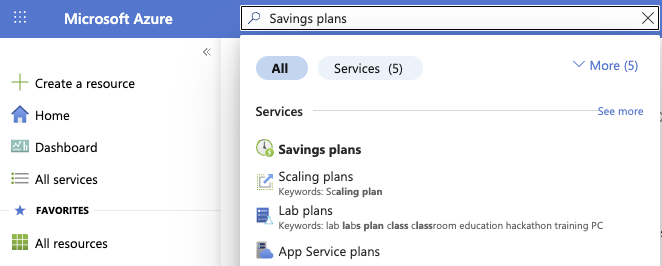
- Within Savings plans, click the Role Assignment button.
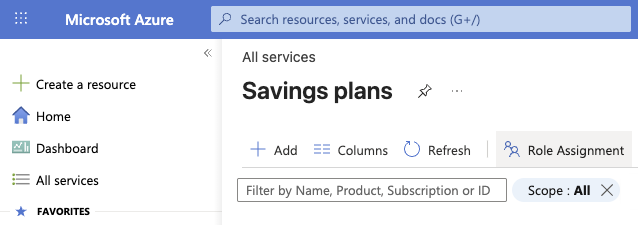
- Set the Role to Savings plan Reader and search for the CloudDIET Service Principal created in the previous steps. Click Review + assign to assign the role.
Step 6: Add Service Principal(s) in CloudDIET
CloudDIET can be configured by logging into https://clouddiet.app with your Azure Active Directory organizational user credentials and adding the previously collected values from Step 1.
| Value | Example Value |
|---|---|
| Application (client) ID | 77df3525-8d2a-482a-bfb3-49eef0fa3e48 |
| Directory (tenant) ID | 16aa304a-f0a8-4fad-b2ed-f2ef4ed93428 |
| Client secret | PtV8Q~k0aACH64KG0m.VpWVoSfSnPZ |
| Object ID | a6101ff8-8e9a-4470-8e6a-7204e050d87c |
| Subscription ID | 1b214ac0-dccc-4b17-b019-ac05e9eaff11 |