Adding Subscriptions
Once you have added at least one Service Principal in CloudDIET, you can add your Azure Subscriptions.
note
You must have completed the previous Adding Service Principals steps before proceeding.
Configuration Steps
- Login to CloudDIET and navigate to Settings.
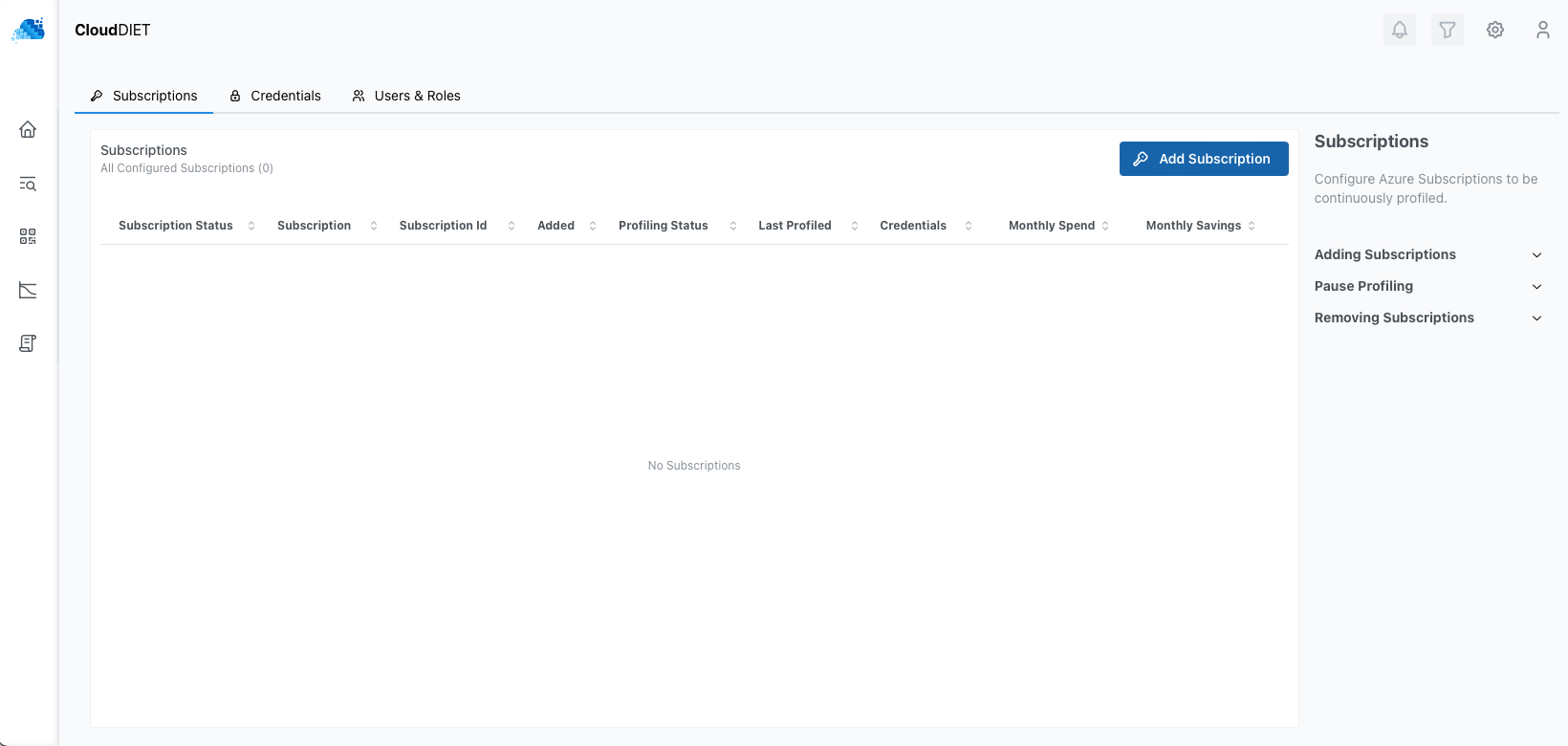
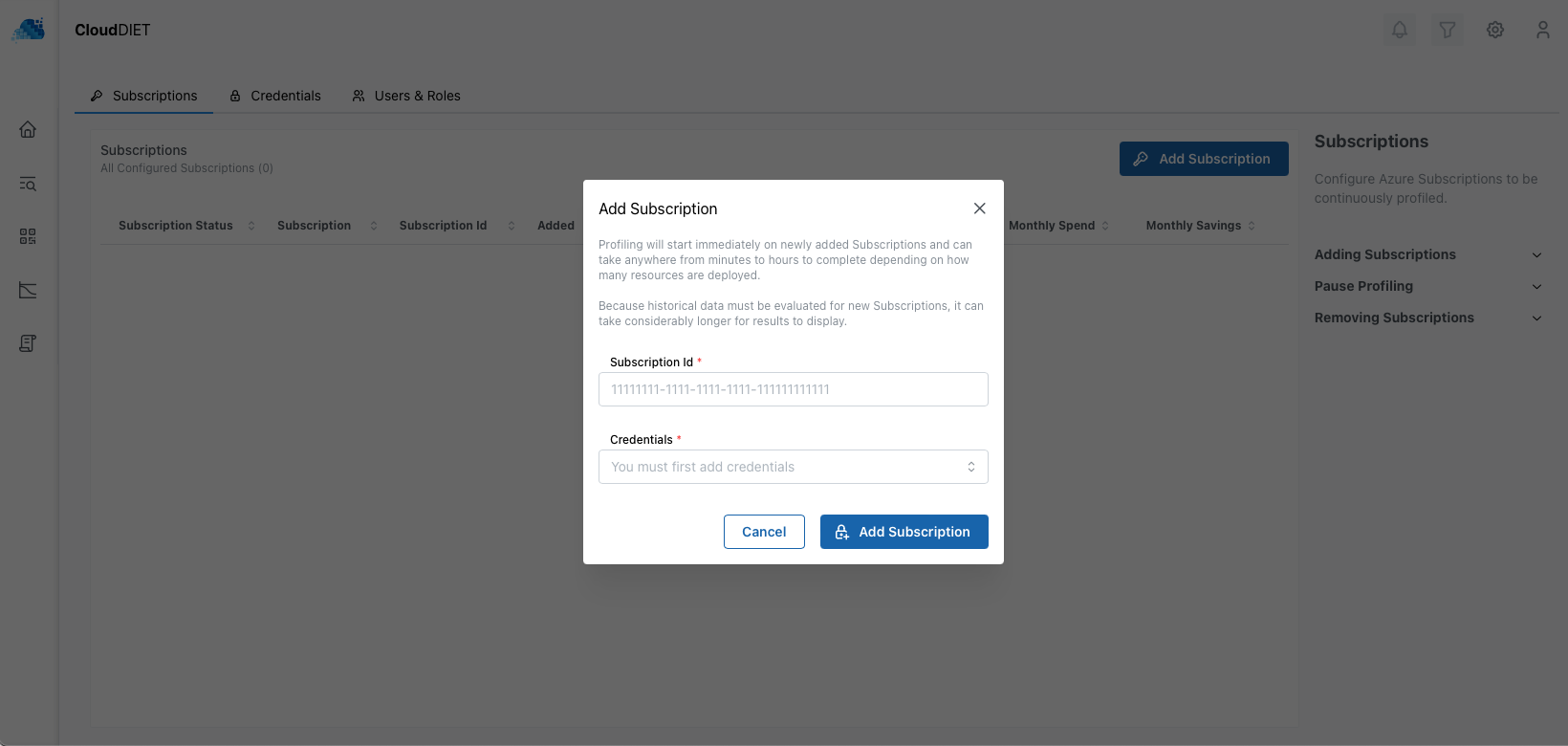
- Click the Add Subscription button and provide the Azure Subscription(s) Id (GUID) and the appropriate Credential. The Subscription will be validated automatically to ensure it can properly authenticate.
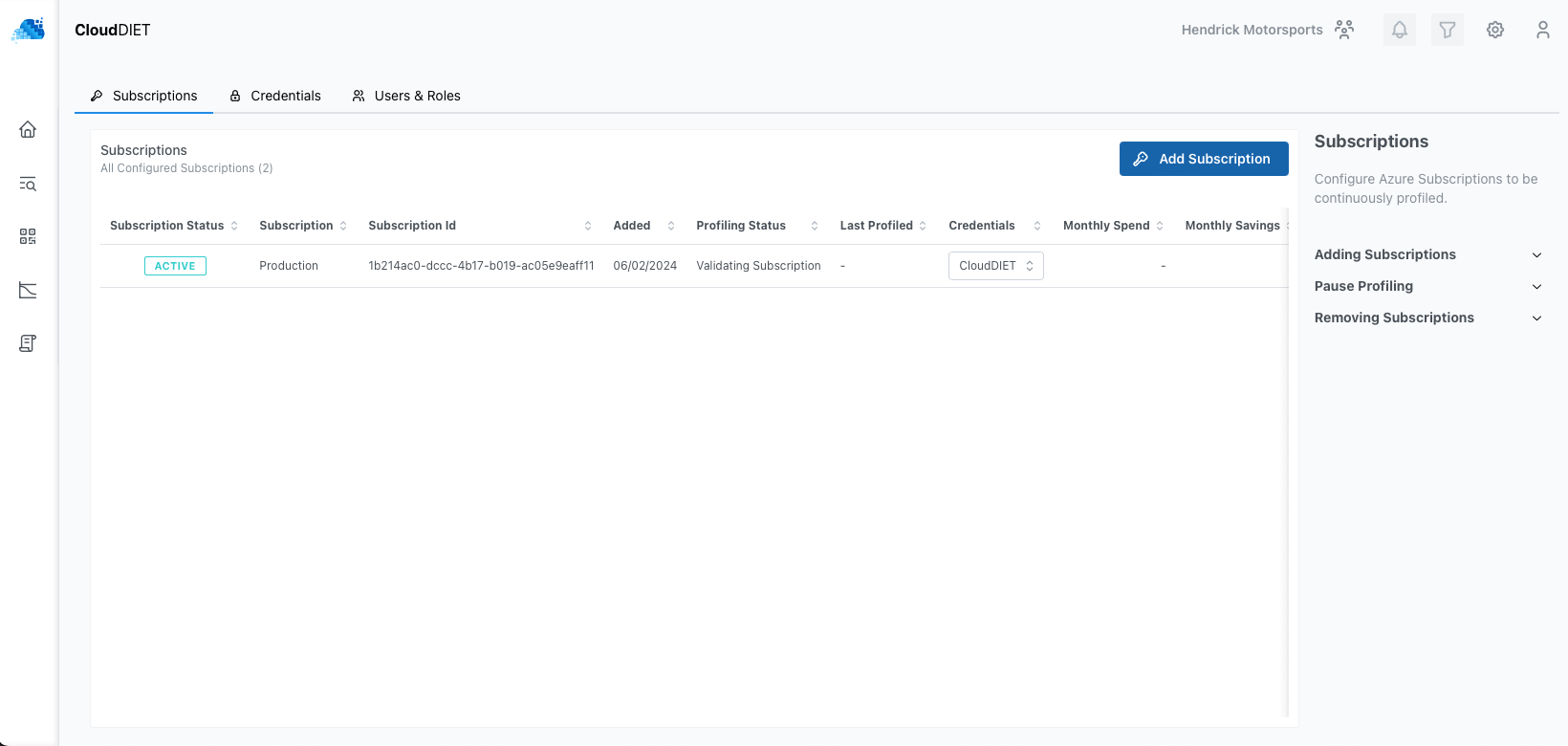
- Once added and validated, you will see the Azure Subscription(s) listed and the current status. CloudDIET will automatically begin profiling your Azure Subscription. Depending on the amount of resources in the Subscription, this can take anywhere from a few minutes to several hours.
note
As long as CloudDIET is not actively profiling the Subscription, it can be paused or removed at any time.