User Permissions
CloudDIET authentication and single sign-on is based on integration with your Azure Active Directory. Additional roles are provided within CloudDIET to manage user access.
Adding Users
Because authentication is based on your Azure Active Directory, you do not need to explicitly add users to CloudDIET. When a user logs in with their organization account, you'll see them automatically added to CloudDIET and listed.
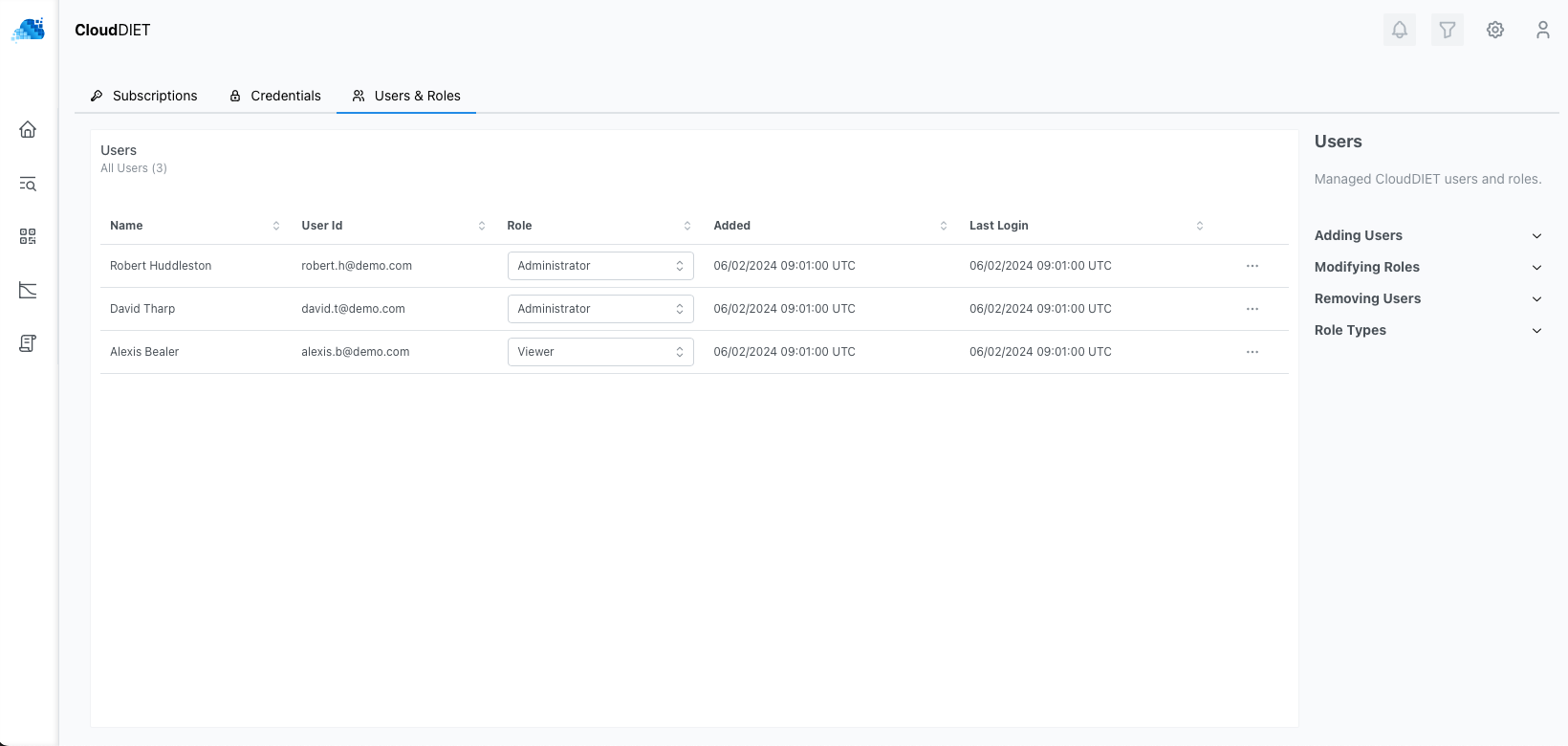
Roles
| Role | Permissions |
|---|---|
| Administrator | Can view all data and manage all Subscriptions, Credentials, and User acccess. |
| Viewer | Can view all data, Subscriptions, Credentials, and User acccess, but not make any changes. |
| No Access | Can sign in, but cannot view data, Subscriptions, Credentials, or User Access. |
Removing Users
Users can be removed from by navigating to Users & Roles, selecting the user, and clicking Remove User.
Removing a user from Users & Roles will not prevent them from signing back into CloudDIET unless you take the below Restricting Users action.
Restricting Users
By default, users in your organizational Azure Active Directory can sign in and access CloudDIET. You can restrict who can sign in by changing the CloudDIET Enterprise Application properties within your Azure Active Directory.
- Sign in to the Azure Active Directory administration portal.
- Navigate to Enterprise applications and search for CloudDIET AI.
- Under Properties, select Yes for Assignment required.
This will restrict users from accessing CloudDIET unless they are provided access in Users and groups.
Additional details can be found in Restrict your Microsoft Entra app to a set of users in a Microsoft Entra tenant